v11

Probably the best trading platform ever made.
ProRealTime version 11 delivers many new features to make trading easier and more enjoyable.
Learn more about why we consider it to be the best version we have ever made.

Platform redesign
Chart improvements
Price & Indicators
Chart studies
Objects & drawing improvements
Shortcuts & favorite instruments
ProRealMap
Search & instrument Database
Historical data mode
Notification center
Other improvements

Platform redesign

The platform has been redesigned with 2 objectives:
  • allowing you to display more useful information in a smaller area
  • saving you time by requiring less clicks to use platform features

Chart improvements

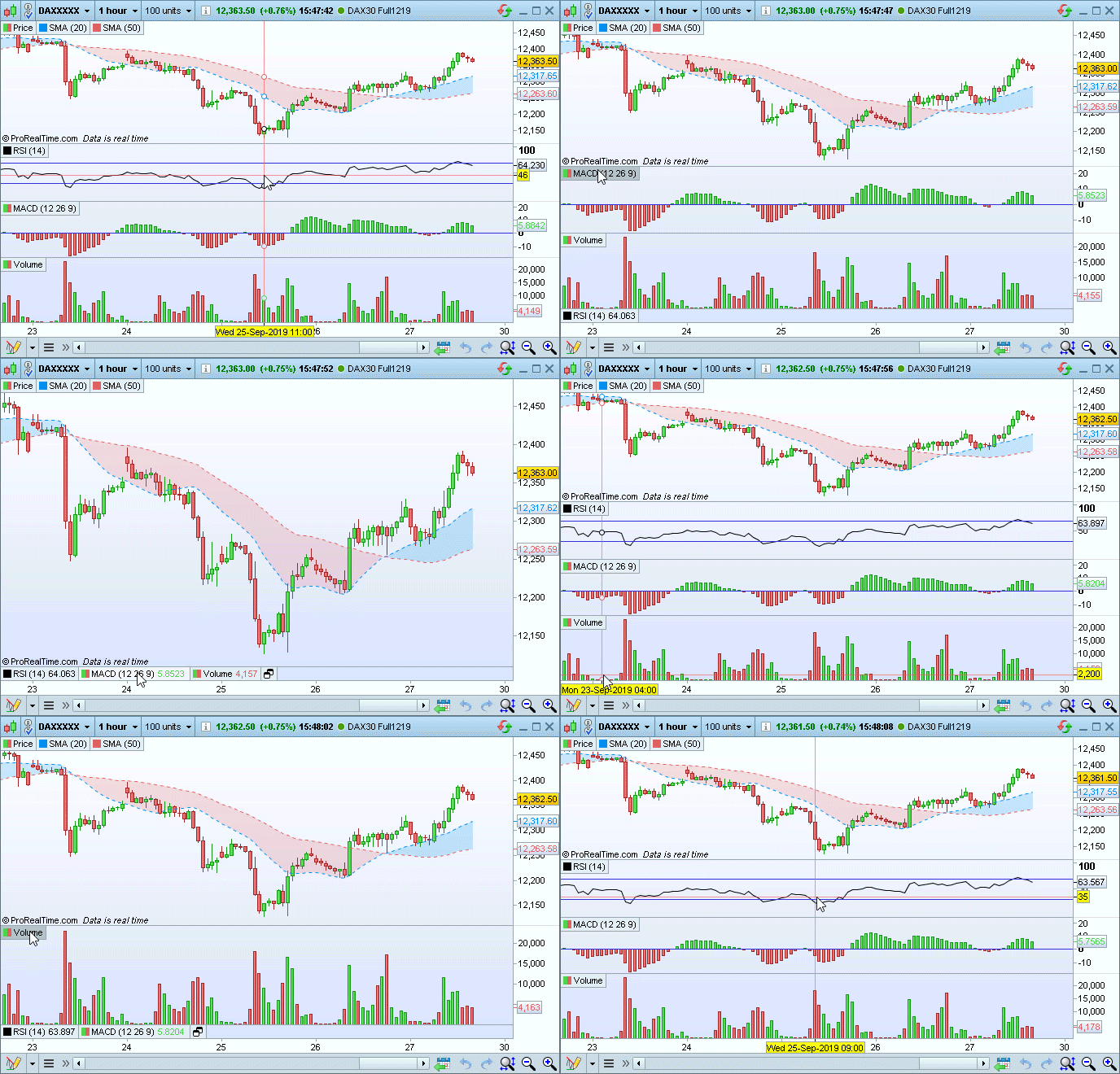
Charts

The charting window buttons and menus have been optimized to take less space and give more space to the chart itself.

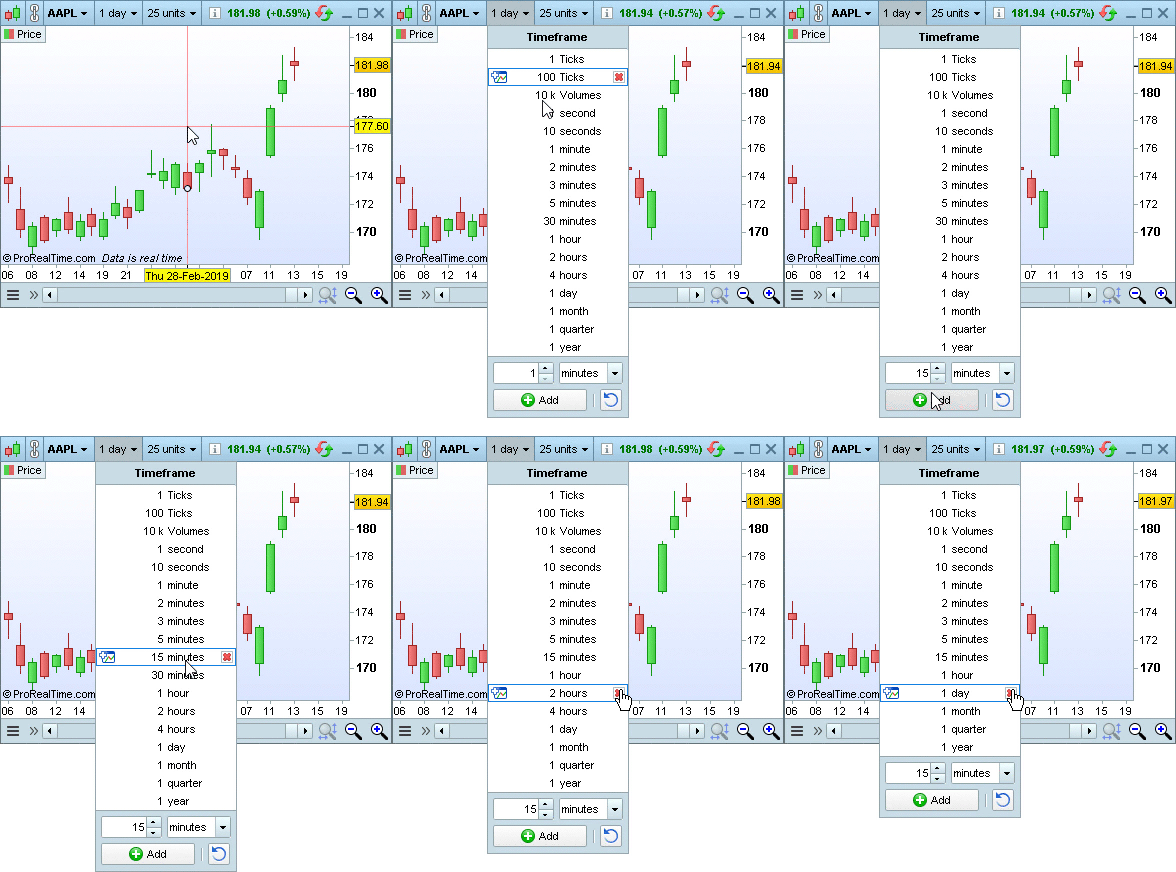
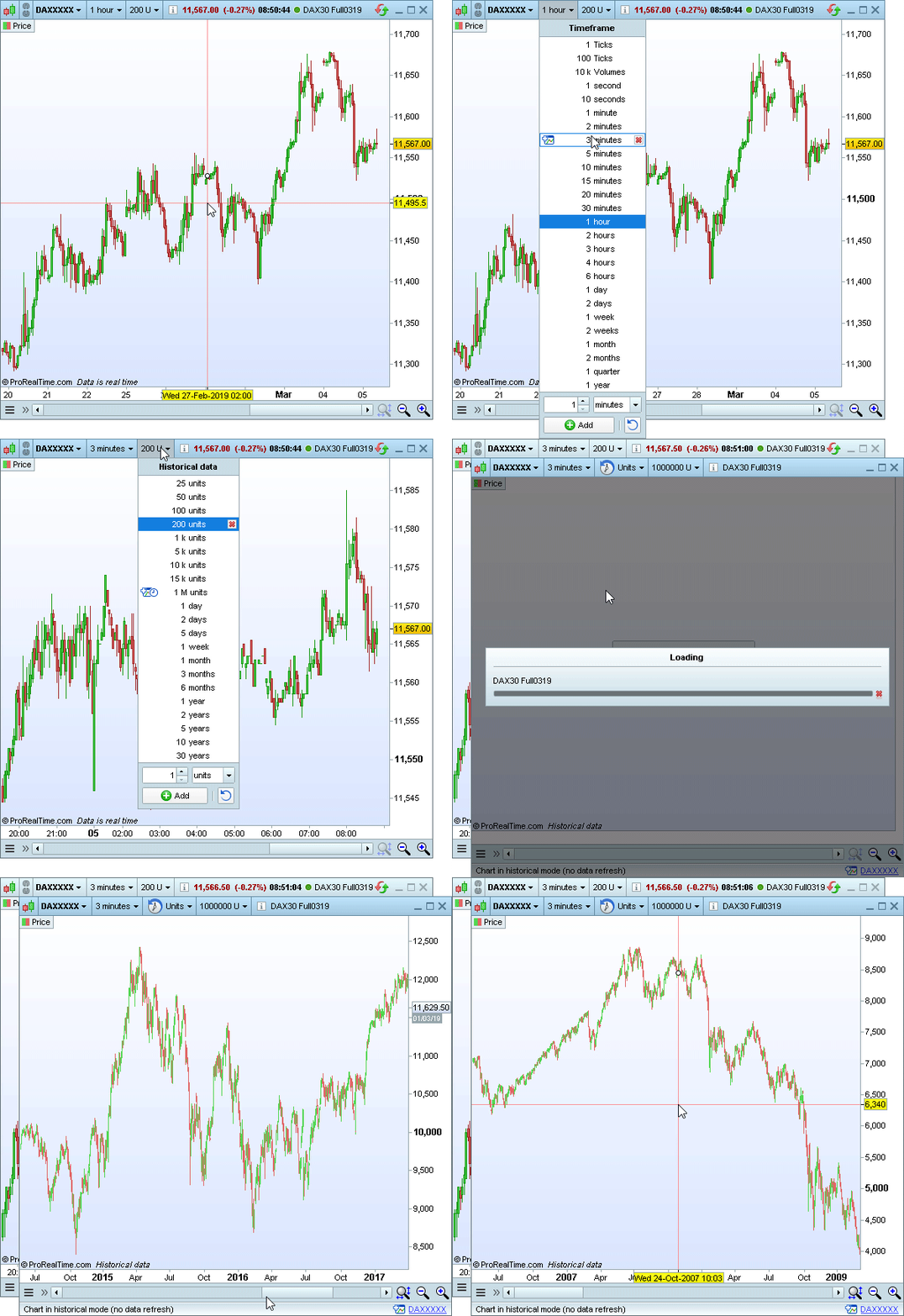
Customised timeframes

Timeframe and historical data dropdown menus can now be entirely customised.
You can add your own timeframes and historical quantities to the menus and hide the ones that you do not use.
Customised timeframes

Price & Indicators

Price and chart styles


Indicators

Chart studies

You can now create different chart studies which are independent from eachother on the same instrument and timeframe (example: different studies for support/resistance and for Fibonacci/Gann).

Objects in different chart studies are independent from eachother - only the objects you have drawn on a specific study will appear in that study.

Each chart study is specific to a financial instrument and is available no matter what workstation template you are using (ex: multiple screen template or single screen template).

Objects & drawing improvements

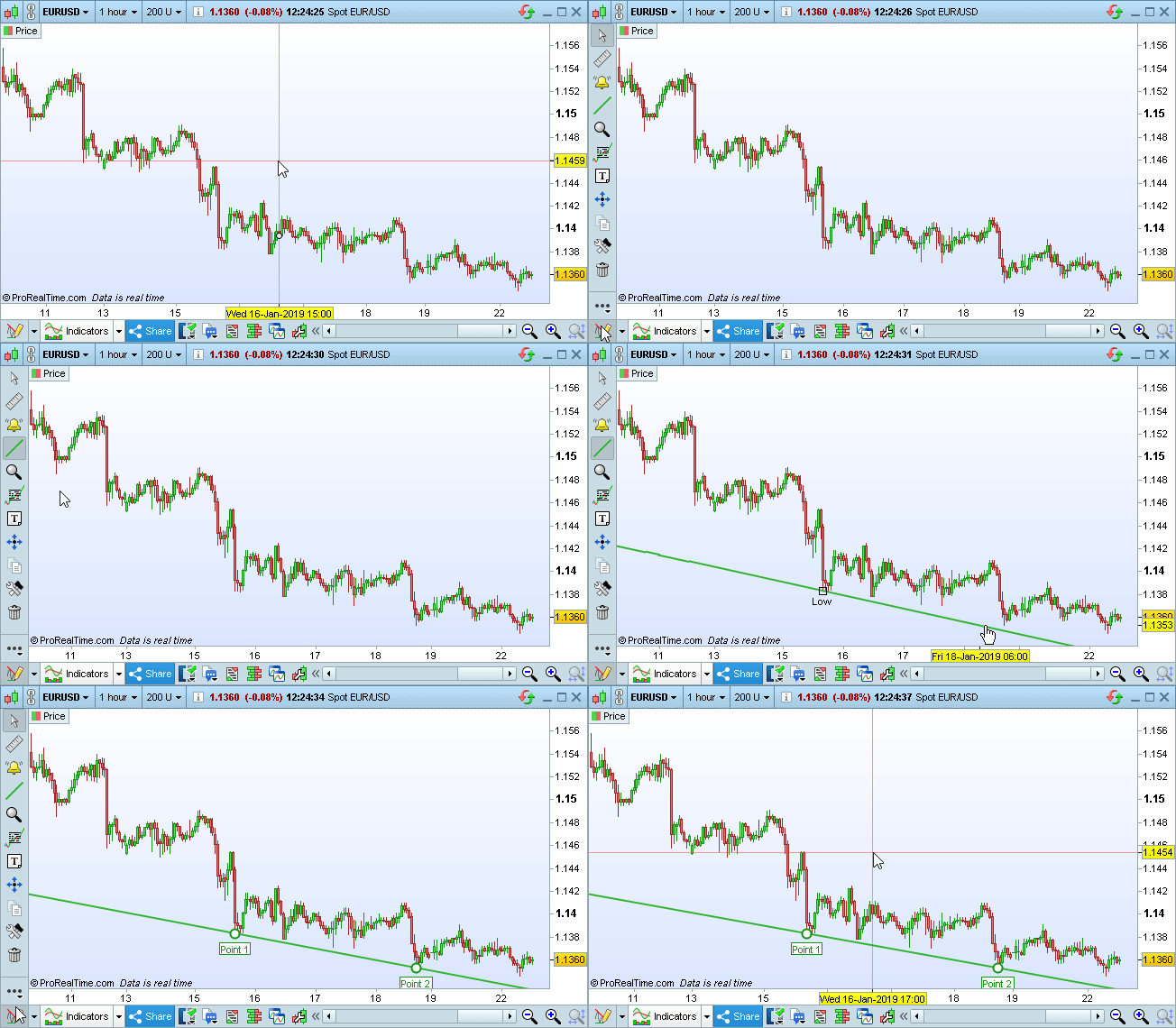
Drawing toolbar on charts

The object toolbar can now be displayed or hidden on all charting windows, and in the main ProRealTime window. This will allow you to access drawing tools and objects more quickly.

To display or hide the drawing toolbar from your charting windows, click on the drawing icon at the bottom left.

The toolbar can be customized to display the tools that you use in the order that you want. If your charting window is smaller than the toolbar, use your mouse wheel to navigate through the toolbar.
Drawing toolbar on charts

Objects templates

Create and save several types of configurations per object (ex: red line and green line) to save some time when using drawing tools.

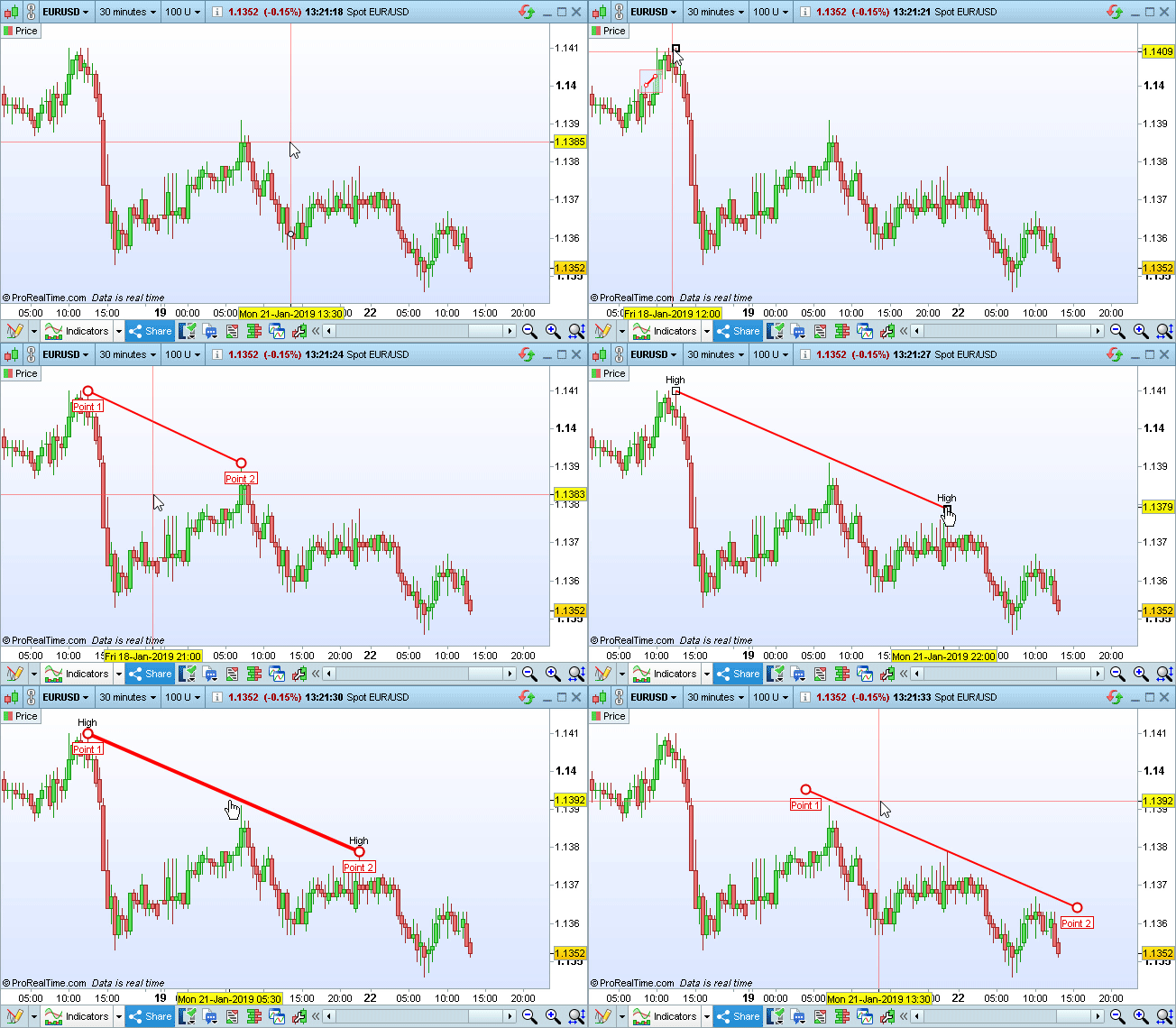
Draw and modify more quickly

In cursor mode, objects can now be modified (without using a dedicated modification mode), making it easier and more comfortable to use them.
Draw and modify more quickly

New objects

New drawing objects have been added : Head & shoulders, Impulsive Elliott waves and corrective Elliott waves.

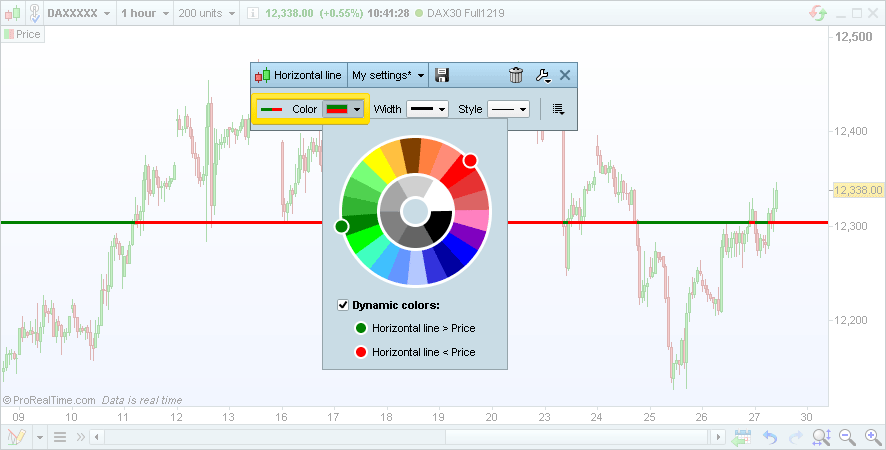
Line color based on price or indicators

Horizontal and oblique lines can now be colored differently depending on whether the price or an indicator is above or below them.
Line color based on price or indicators

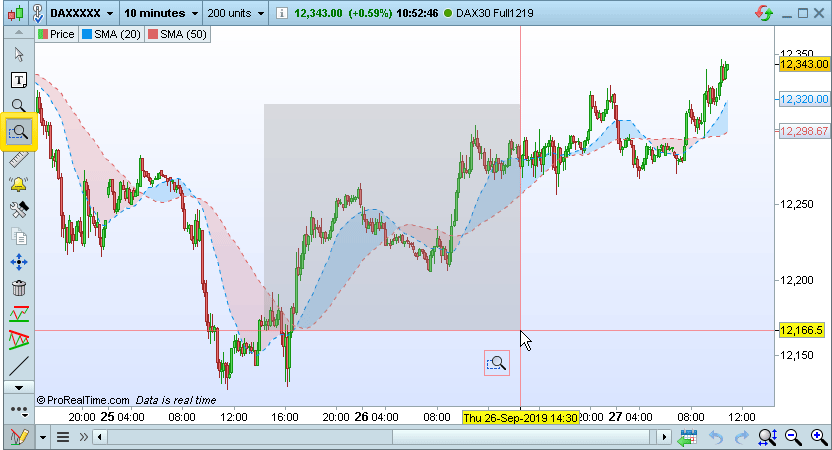
Zoom zone mode

A new zoom zone mode lets you draw a rectangle on your charts to zoom on the area drawn (both horizonally and vertically).
Zoom zone mode

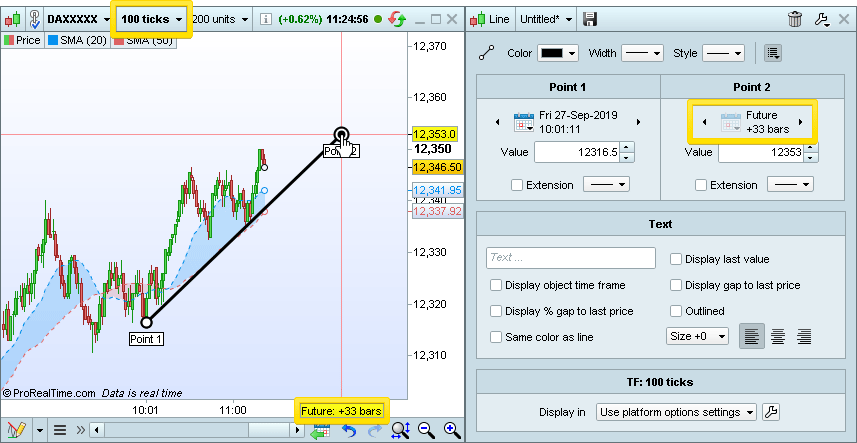
Future drawing in non-linear chart views

Non-linear chart views now also support drawing in the future.
Future drawing in non-linear chart views

Transfer to other timeframes

More possibilities to transfer your objects to other timeframes. Choose between :
  • Display objects only in the timeframe it was drawn
  • Transfer objects to inferior timeframes only
  • Transfer objects to superior timeframes only
  • Display objects in all timeframes

Object configuration

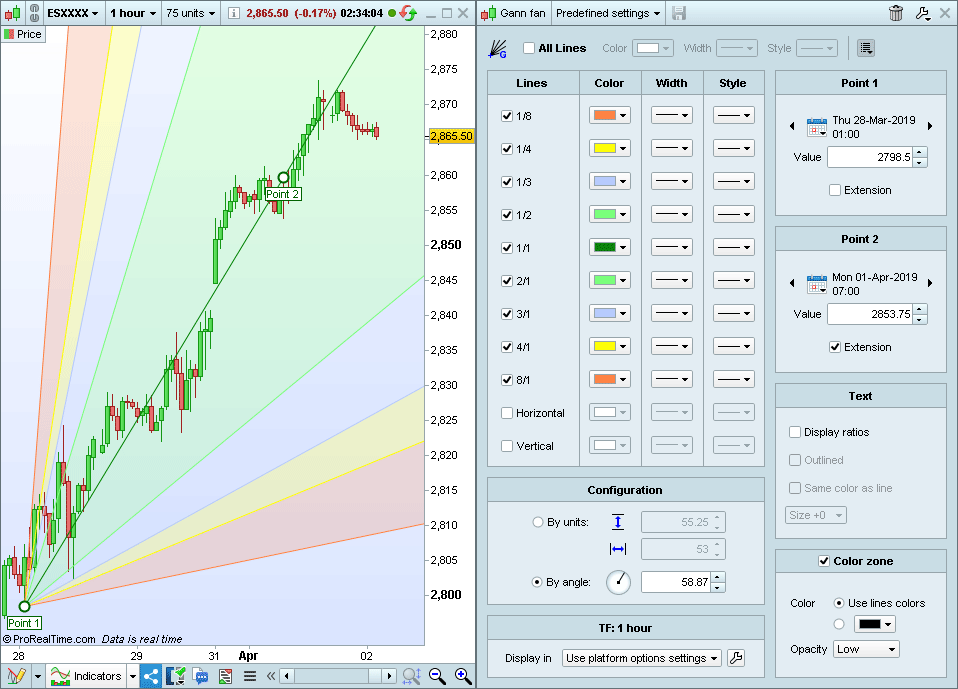
Object configuration windows have been redone with additional customization possibilities for several objects (levels, colors, associated texts...).
Several new settings have been added, including ability to display the timeframe the line was drawn in and line distance from last price.
Object configuration

Shortcuts & favorite instruments

Shortcuts

The shortcuts window has been reworked to allow you to view and set several shortcuts at once and allow more flexibility in the type of shortcuts you can set.

Favorite instruments

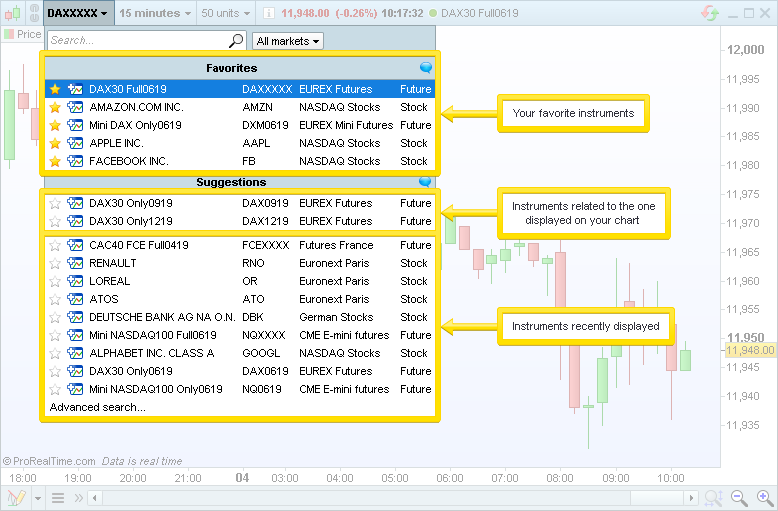
From the instrument search results, click on the star icon next to an instrument's name to set it as favorite.
Once an instrument is set as favorite, you will be able to access it quickly by clicking the name area in any chart or order book.
If applicable, you will also see a list of securities related to the instrument currently displayed, and a list of recently viewed securities.
Favorite instruments

ProRealMap

Lists in ProRealTime can now be displayed as a market heatmap. The heatmap can be displayed either :
  • On the side of a list
  • Below a list
  • As an independent window
You can use your mouse wheel to zoom in the market heatmap.
The size of the boxes can be either fixed, determined by trading volume, or determined by exchanged capital for the current day.
The color of the boxes is determined by market variation since the previous trading day.

Search & instrument Database

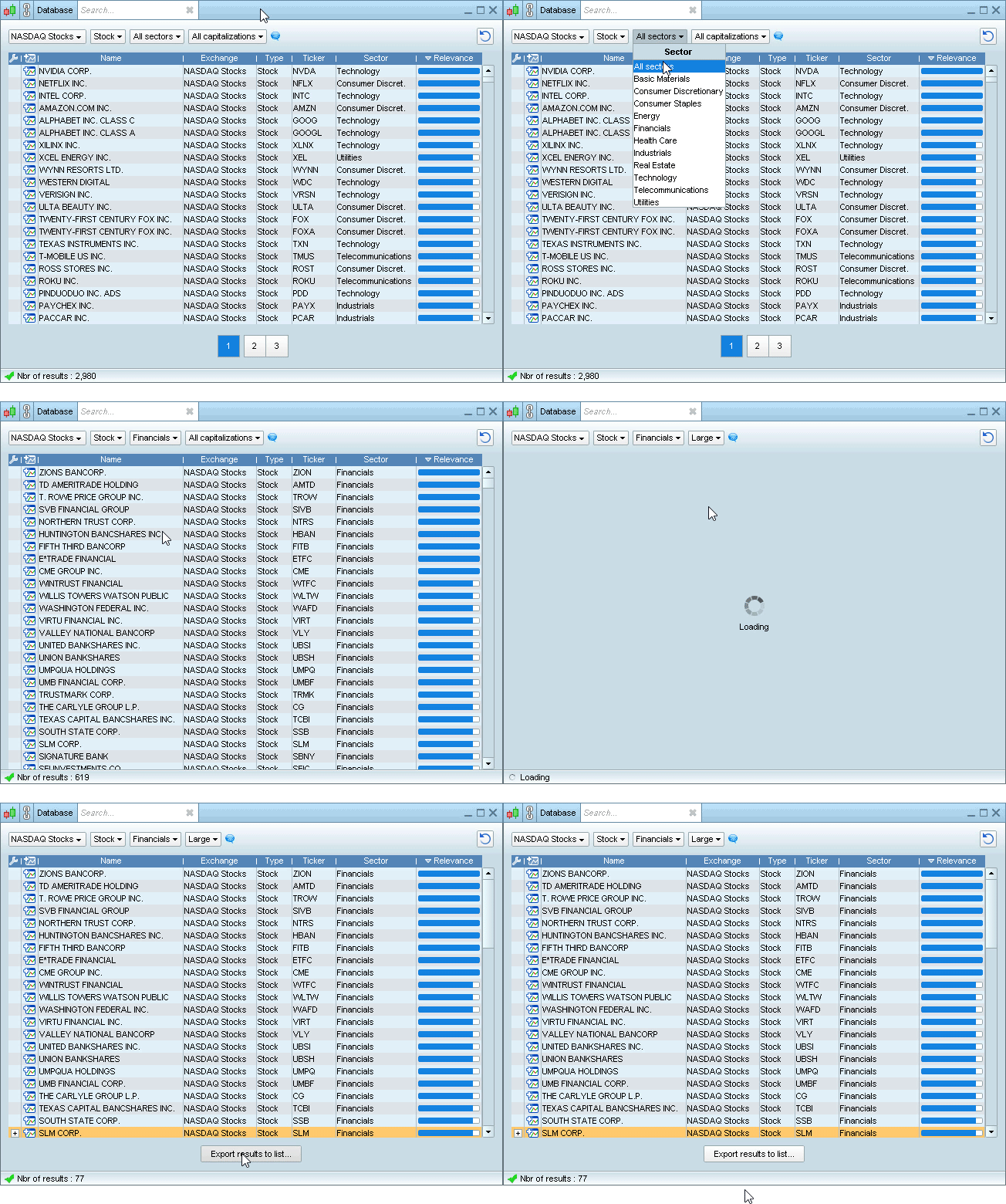
The new "Instrument database" window allows you to display complete lists with up to 1 000 instruments per page. You can filter instruments by :
  • Exchange
  • Country
  • Instrument type
  • Sector
  • Capitalisation
  • Underlying
Advanced search has been improved to offer the same possibilities.
If the number of results is below 50 for the Complete workstation, you will be able to export results to a real-time watchlist.
Search & instrument Database

Historical data mode

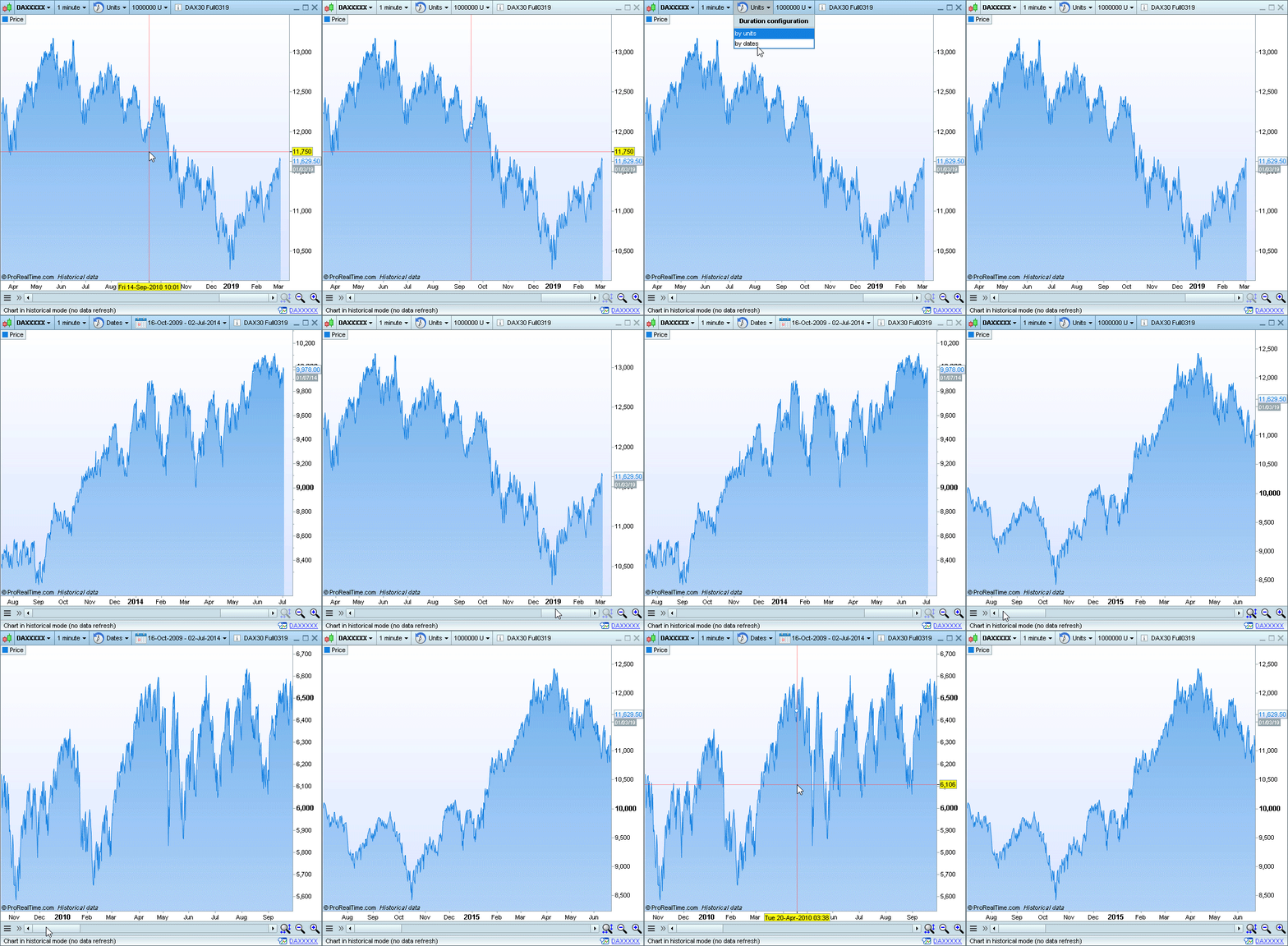
A new "Historical Data Mode" in the Premium version allows you to view charts with up to 1 million candles displayed!
This mode is dedicated to analysis and backtesting.
Historical data mode
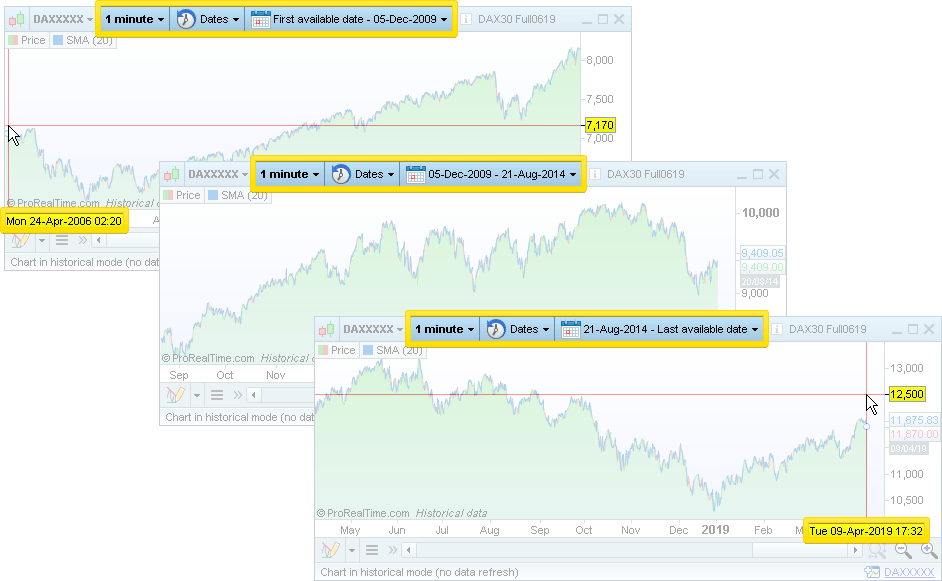
In addition to displaying the last 1 million candles, you can get historical data even farther in the past by selecting a specific date range (ex: Dax Future chart in 1 minute view from 2009 to 2014).
Historical data mode
Up to 3 charts in historical mode with up to 1 million candles of each can be displayed at one time, either on the same instrument or on different instruments.
Historical data mode

Notification center

For less disruption in your trading, the following popups are now displayed as notifications :
  • Information on pending or executed orders
  • Alerts triggered
  • Instant message received
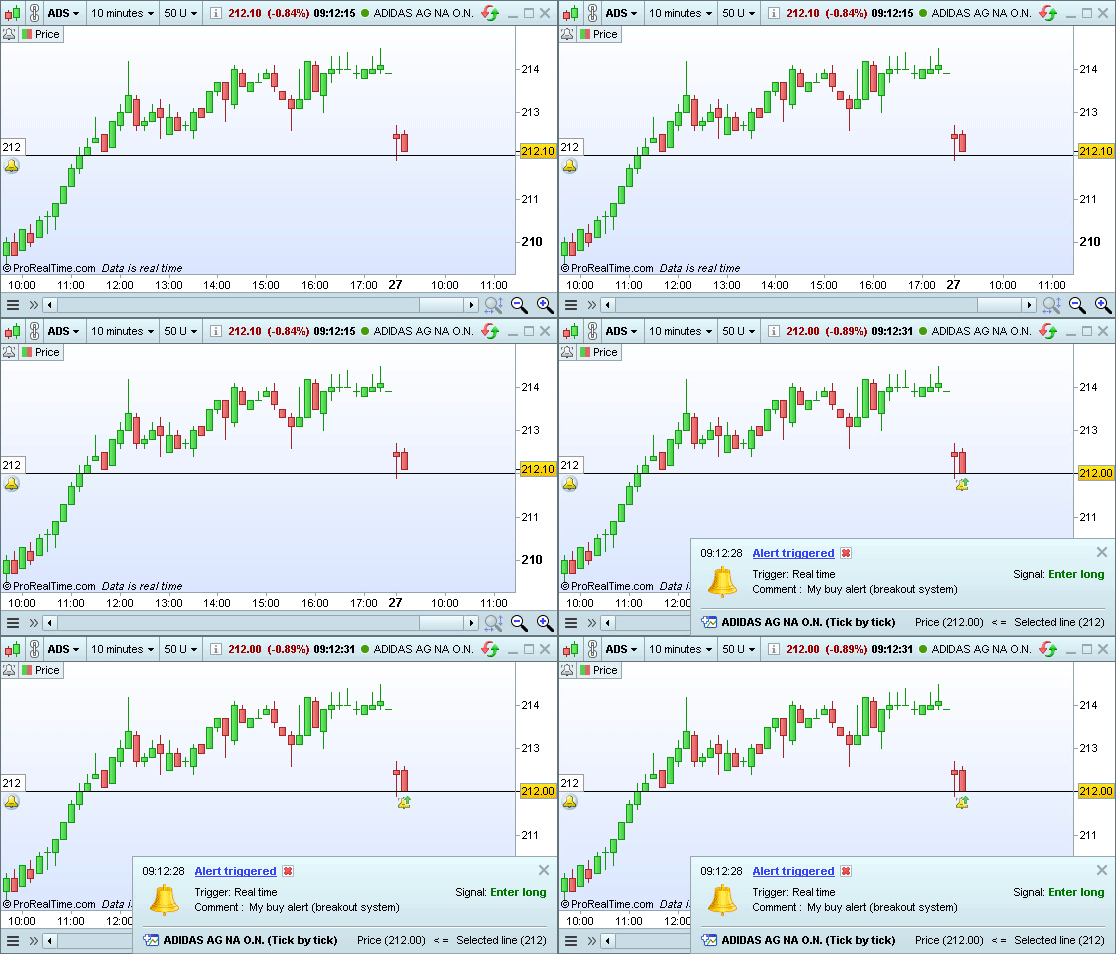
Notifications appear on the right of the screen. You can choose to either have them remain on screen until you click them or disappear automatically after a few seconds.
Notification center
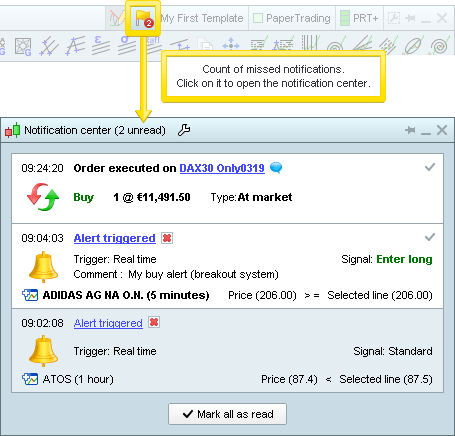
Notifications are also regrouped in a dedicated notification window. If you missed notifications, a badge in the main window will show a count and allow you to display them.
Notification center

Other improvements

Alerts in 1 click

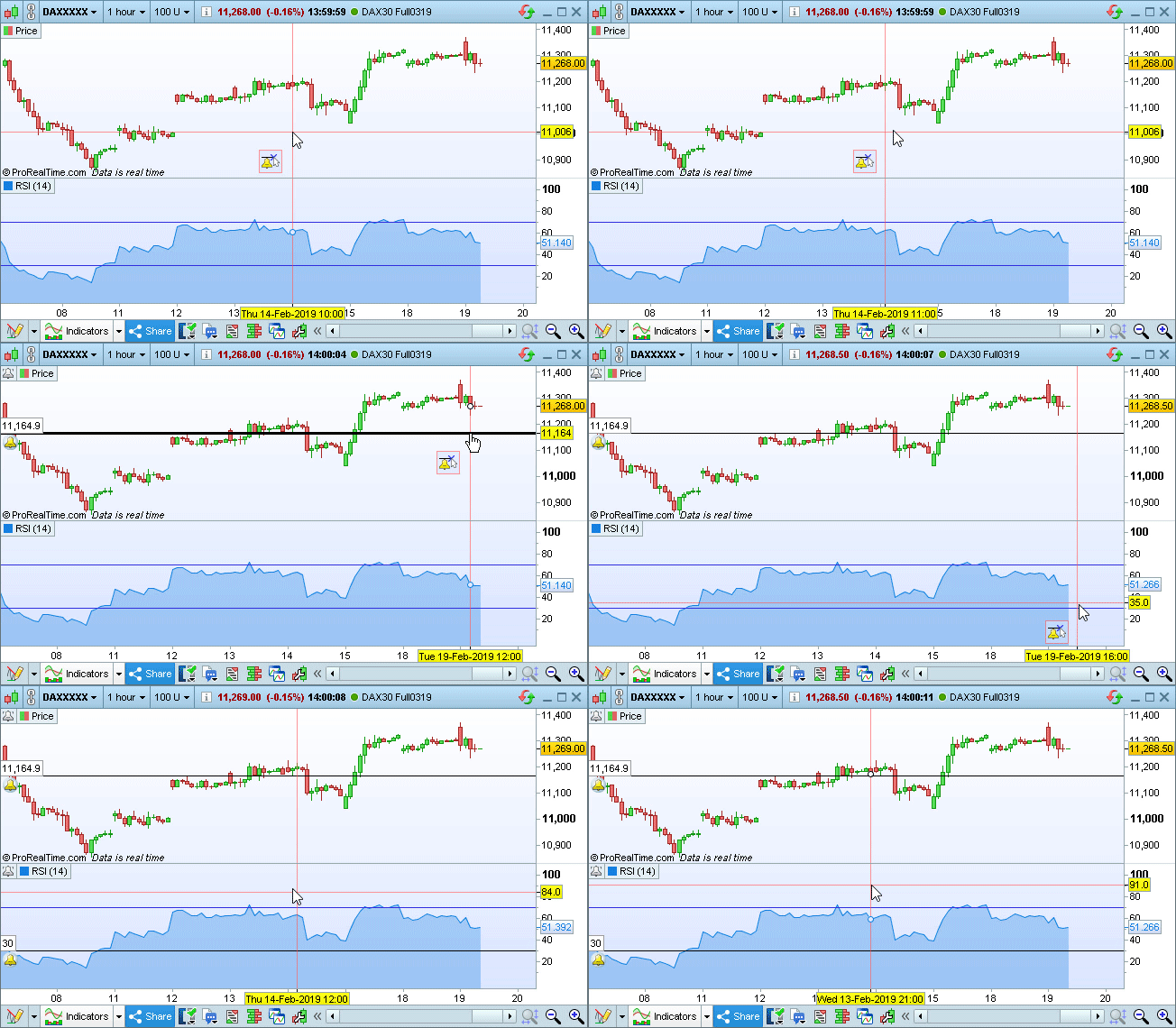
You can now create alerts based on price levels in 1 click.
The configuration of the alert will depend on the cursor position relative to current value. For example, if you create an alert below the current price, the alert will trigger when price <= the alert price.
Alerts in 1 click

Data

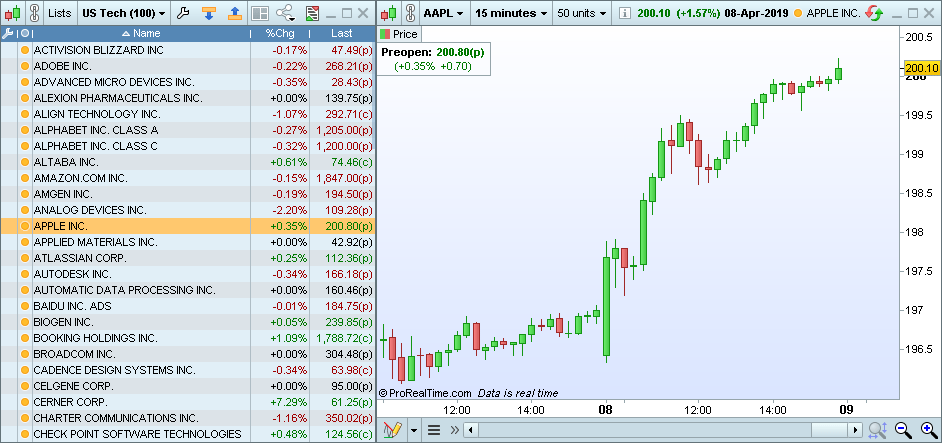
  • Pre-Open prices will now be displayed on charts and lists (during market pre-open).
  • When trading on a stock is suspended, the price and time that trading will reopen are now displayed on the chart (when the exchange provides this information).
Data
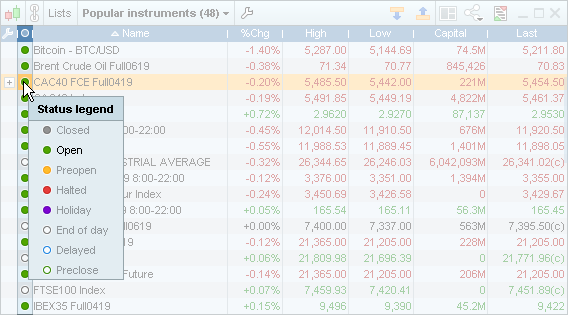
  • A datafeed status icon shows you the current market status (pre-open / open / closed / vacation) and/or your type of access (real-time / delayed / end-of-day).
Data

Platform Templates

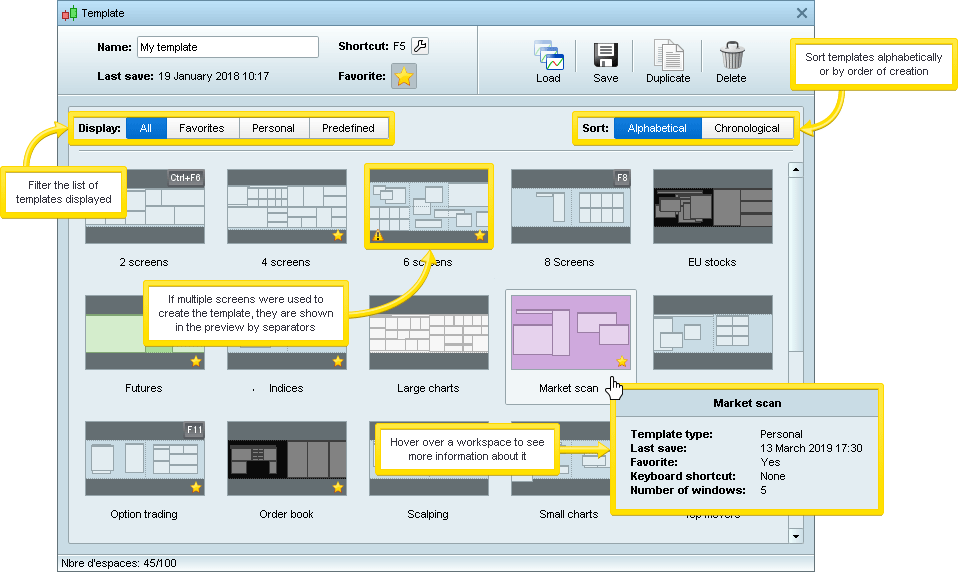
The new templates menu has been reworked.
It now shows a preview of all your saved templates, including the approximate window dispositions and number of screens the template was saved with, making it more easy to manage your templates when you are using your ProRealTime platform on several computers (for example a desktop computer with 2 screens and a laptop).
Platform Templates

General interface

  • Modal popup windows will now always appear on the screen where your mouse is placed so that they are easy to find.
  • Date selectors have been improved and now display a calendar to pick a date.
  • Hovering over a line in a list highlights this line for easier readability.
  • A new "Quick addition" button has been added to lists to make it easier to insert new instruments into existing personal lists or make a custom version of predefined lists.
  • By default, Market buttons display the "Sell" on the left and the "Buy" on the right. You can now choose to invert their position (Options Menu > Trading Options > Display).